
Your Stripe account, your data, and moving your club
Where your subscribers' payment data lives, what you can see, and how to move your subscriptions elsewhere without anyone re-entering their card.
Your account is in your name
When you connect Stripe, Stripe creates a Stripe Express account in your name, linked to MailClubly. It's your own account, not a shared MailClubly one:
- Your subscribers' payments go directly into your account, and Stripe pays them out to your bank.
- Your customers, their saved payment methods, their subscriptions and invoices are all stored in your account, separately from every other club.
- Your account details (identity, bank account, email) are yours to update.
- Card numbers are stored securely by Stripe. Neither you nor MailClubly can ever see a full card number, and nobody needs to.
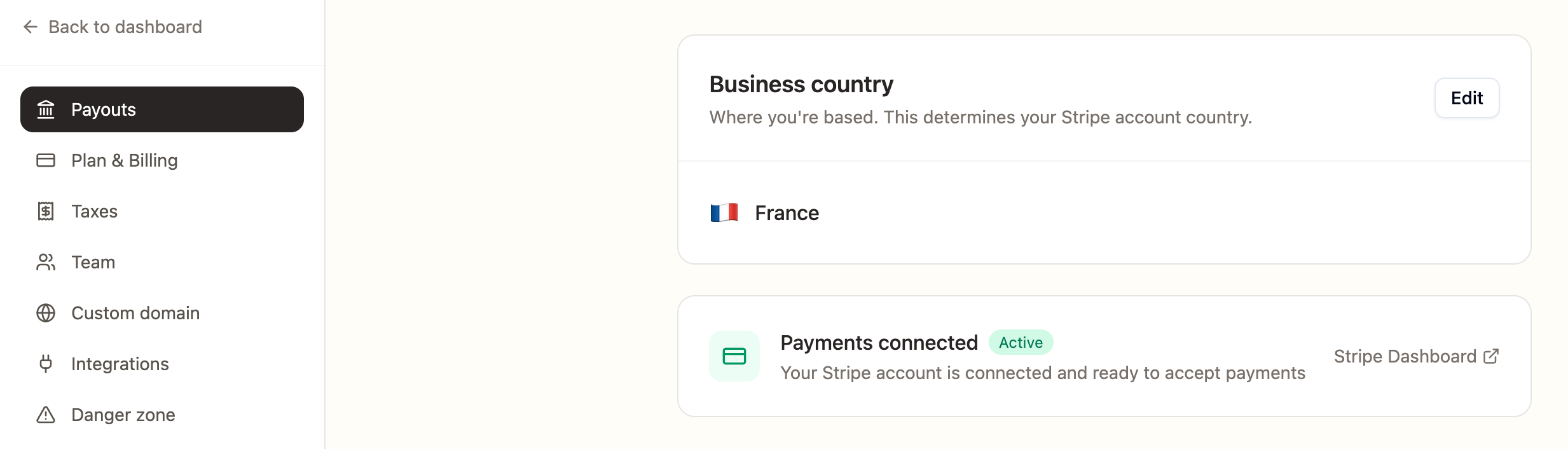
You'll find your account's status in Settings → Payouts, with a link to your Stripe dashboard:
What you can see, and where
| Where | What you'll find |
|---|---|
| Your MailClubly dashboard | Your subscribers, their addresses, their plans and payment status, and every mailing. This is where you manage subscriptions. |
| Your Stripe Express dashboard | Your balance, upcoming payouts, transactions (each charge, payout and adjustment), financial reports, tax forms (US) and account settings. Open it from Settings → Payouts → Stripe Dashboard, or log in at connect.stripe.com/express_login. |
| CSV export | Subscribers → Export CSV downloads every subscriber's name, email, status and address, anytime. |
This is what the Stripe Express dashboard looks like (an example):
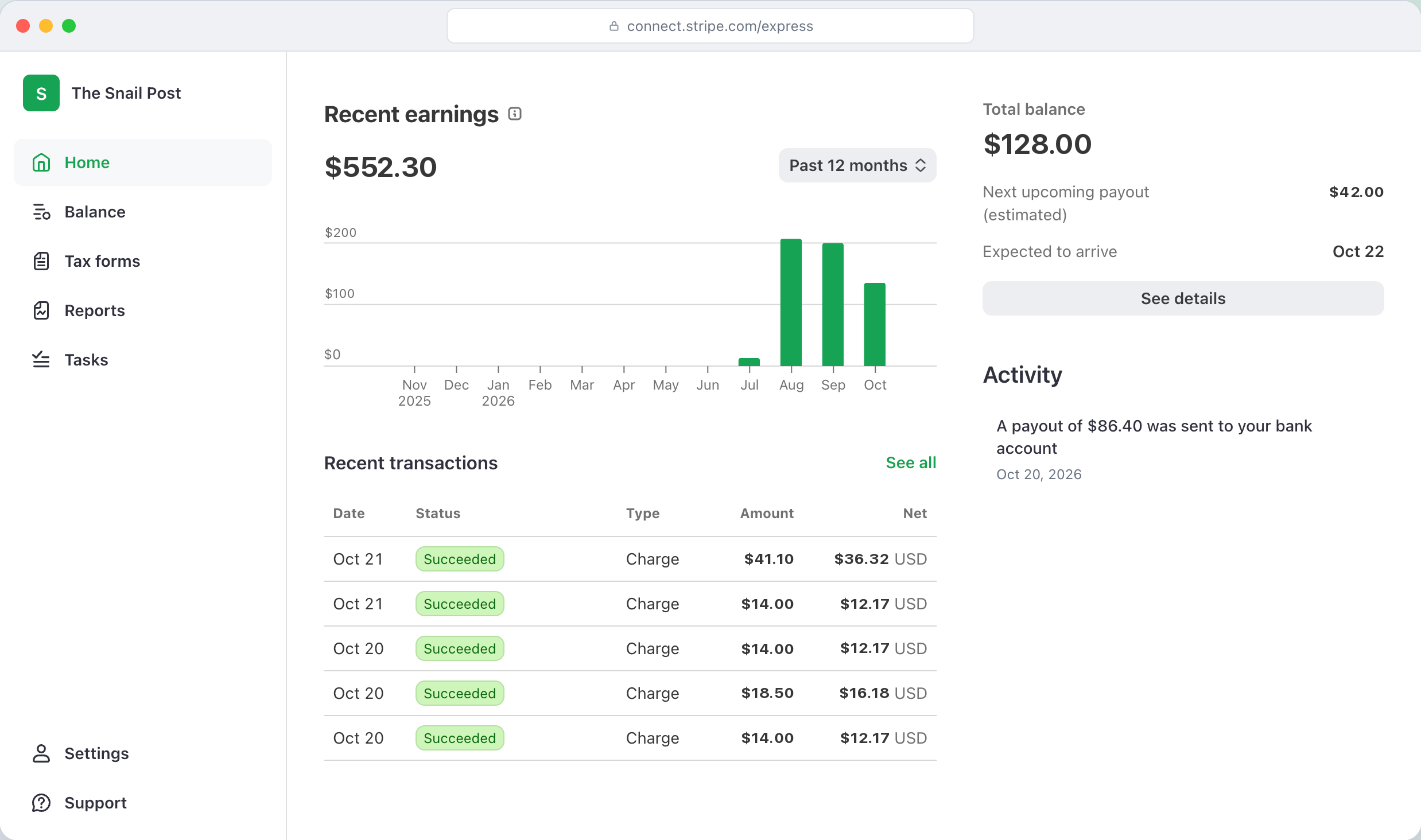
An Express account comes with the Express dashboard rather than the full Stripe Dashboard, so your subscribers and their subscriptions are managed from MailClubly. What the Express dashboard includes
Exporting your subscribers
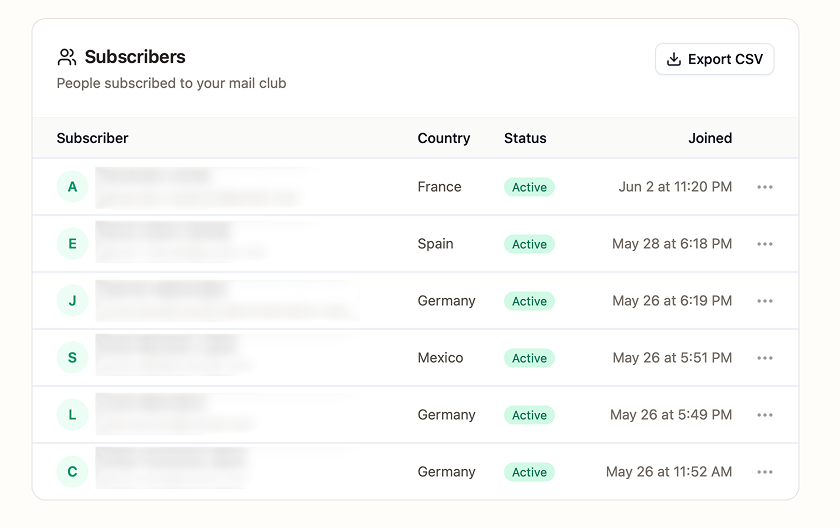
Go to Subscribers and click Export CSV. You get one file with every subscriber (active and past): name, email, status, full shipping address and the date they joined. You can export as often as you like, and import the file into your own tools, such as your website or email list.
Emailing your subscribers: they joined your mail club, not a newsletter. Before adding them to a marketing list, check the rules where they live (in the EU and UK, marketing emails usually need consent), and always include an unsubscribe link.
If you stop using MailClubly
Nothing stops on its own: your subscriptions keep renewing until they're canceled. You decide what happens next:
- End your club: let subscriptions end or cancel them, then delete your club. See Take a break, close or delete your club.
- Move your subscribers to another platform: see below.
Moving your subscribers without re-entering cards
Stripe has a secure tool to copy customers and their saved payment methods from one Stripe account to another, so your subscribers don't have to enter their card again. On an Express account, this copy is started by the platform, so we start it for you. Here's the whole process:
- Get the destination account ready. This can be your own Stripe account or the one your new platform uses. You'll need its Stripe account ID (it starts with
acct_), which is shown in its Stripe Dashboard. - Contact us through our contact form with that account ID and the date you'd like to switch.
- We start the copy from your account. If the two accounts haven't exchanged data before, the destination account approves the request in its Stripe Dashboard.
- Stripe copies your customers and their saved payment methods. Customers keep the same IDs (
cus_…), so they're easy to match with your CSV export. - Subscriptions are recreated on the new account. Stripe copies customers and payment methods, but not subscriptions, invoices or past payments. Your new platform (or you) creates the subscriptions again for the copied customers, with the same prices and next billing dates.
- We cancel the subscriptions on your MailClubly account right after the new ones are in place, so nobody is charged twice and nobody misses a month.
Planning the switch
- Pick a date between two cut-offs. Right after a cut-off (once that month's payments are in) is the calmest time: you can ship that mailing from MailClubly and start the next month on the new platform.
- Prepaid subscribers (3, 6 or 12 month plans) have already paid for upcoming mailings. Their new subscription should start billing only after their prepaid months end, so they're never charged twice. Your MailClubly dashboard shows how far each subscriber is covered.
- Let your subscribers know. Their receipts and card statements may look different after the switch, so a short email avoids surprises.
- Your payment history stays in your MailClubly-linked Stripe account (it's a copy, not a move), and your CSV export keeps your full subscriber list.
What Stripe can and can't copy
| Copied | Not copied |
|---|---|
| Customers (name, email, phone, address), with the same IDs | Subscriptions and plans (recreated on the new account) |
| Saved cards | Invoices and past payments |
| US bank accounts (ACH) | Coupons and promo codes |
| SEPA mandates | A few payment types, such as Bacs Direct Debit |
Stripe's own guides: Copy customer and payment method data across Stripe accounts and What data can be copied.
If you're thinking about moving, contact us and we'll plan the timing with you so your subscribers' billing stays smooth.
Related articles
Was this article helpful?
Can't find what you're looking for?
Write to us. A real person replies, usually within 24 hours on weekdays.